Under Billing you manage the details that appear on your invoices and the payment method used to pay your subscription. Changes to your billing details apply to your next invoice.
Note: Billing is only visible to administrators and partners. Only the owner or an administrator of the organization, or the partner who receives the invoices, can make changes. Others see ‘Je kunt de facturatiegegevens bekijken maar niet wijzigen.’ (You can view the billing details but not change them.)
Changing your billing details
- In the Qooqie call tracking application, go to Settings > Billing > Billing Details.
- Change the details. The page is divided into four groups. Bedrijf (Company): ‘Bedrijfsnaam’ (Company name), ‘KvK-nummer’ (Chamber of Commerce number) and ‘Btw-nummer’ (VAT number). Adres (Address): the address and ‘Telefoonnummer’ (Phone number) shown on your invoices. Facturatie (Billing): ‘E-mailadres factuur’ (Invoice email address), ‘Tenaamstelling rekening’ (Account holder name), ‘IBAN’, ‘Extra factuuromschrijving (bijv. PO-nummer)’ (Extra invoice description, e.g. PO number) and ‘Betalingsconditie’ (Payment terms). Berichten (Messages): ‘E-mailadres voor abonnementsinformatie’ (Email address for subscription information) and ‘E-mailadressen contactpersonen bij een datalek’ (Email addresses of contacts in case of a data breach). Separate multiple addresses with a comma.
- Click ‘Opslaan’ (Save).
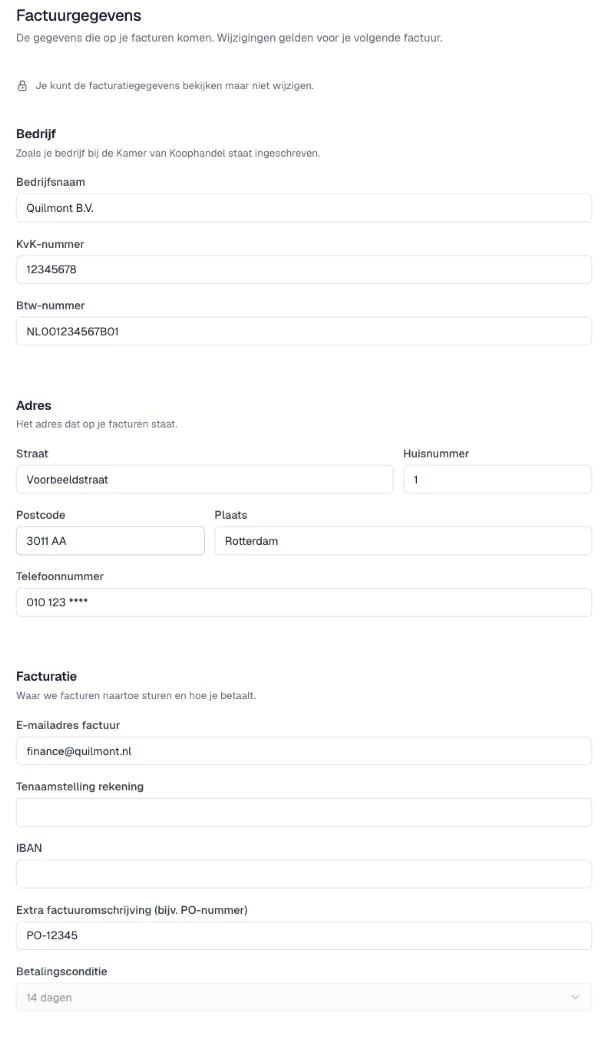
Note: the ‘E-mailadres factuur’ is required. Without this address no invoices are sent.
Note: you cannot change ‘Bedrijfsnaam’, ‘KvK-nummer’ and ‘Betalingsconditie’ yourself. Contact your regular contact person at Qooqie for this.
Are your invoices handled through your partner? Then the page is called ‘Registratiegegevens’ (Registration details). In that case you don’t change the invoice email address here.
Adding or changing a payment method
- Go to Settings > Billing > Payment Methods.
- Click ‘Betaalmethode toevoegen’ (Add payment method) or ‘Betaalmethode wijzigen’ (Change payment method).
- Enter the details of your card or bank account.
- Click ‘Opslaan’ (Save).
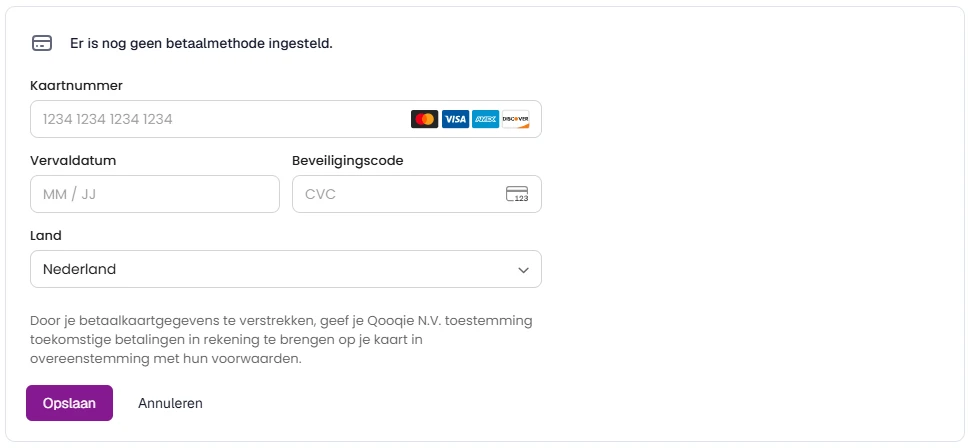
Does your payment method need attention, for example because a payment failed? Then you see a red notice at the payment method and at the top of the app. You can only create and change campaigns again once you have updated the payment method.
Removing a payment method
- Click ‘Betaalmethode verwijderen’ (Remove payment method).
- Confirm with ‘Betaalmethode verwijderen’.
Note: you cannot remove it while a subscription is running or scheduled. Are you a partner? Then you also cannot remove it while clients who are billed through you have an active subscription.
Do you see ‘Je betaalmethode kun je hier niet beheren’ (You cannot manage your payment method here)? Then your invoices are handled through your partner, for example, or you pay in another way. If you have questions, contact your regular contact person at Qooqie.