
The call overview shows every call to your call tracking numbers, with the traffic source, campaign, rating, recording and details. Here you search and filter calls, rate them, add notes and, when needed, forward a call manually to a connected system.
Viewing calls
- Within the Qooqie call tracking application, go to Calls > Overview. This opens the ‘Gesprekken’ (Calls) page.
- Choose the period at the top left. By default you see ‘Deze maand’ (This month); the period you chose before is remembered.
- At the top you see the figures ‘Oproepen’ (Calls), ‘Uniek’ (Unique), ‘Gemist’ (Missed) and ‘Gem. gespreksduur’ (Avg. call duration), plus the number of calls per rating. Click ‘Gemist’ or a rating to filter the list on it. Click again to remove the filter.
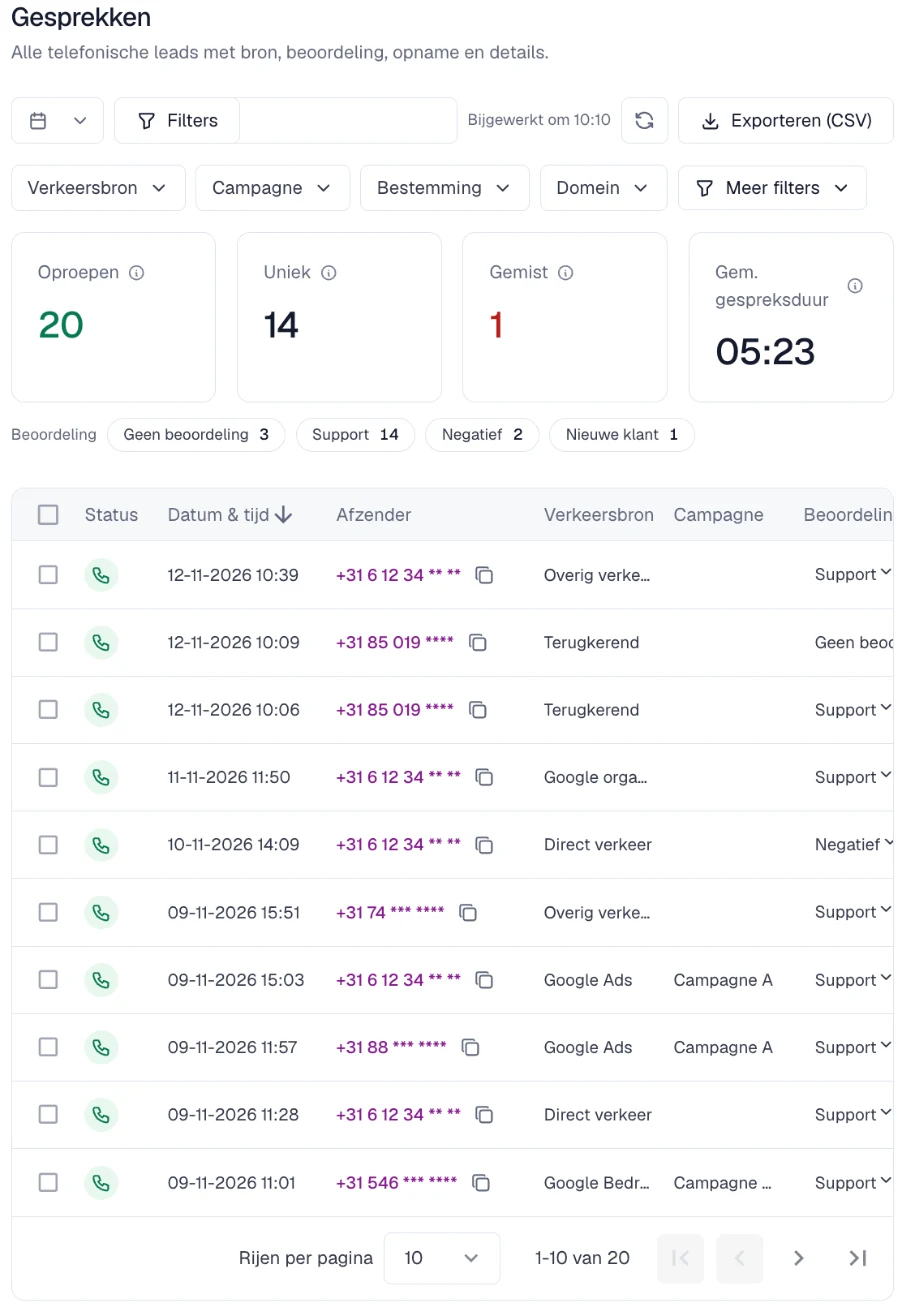
For each call, the list shows the status, ‘Datum & tijd’ (Date & time), ‘Afzender’ (Caller), ‘Verkeersbron’ (Traffic source), ‘Campagne’ (Campaign), ‘Beoordeling’ (Rating), the duration, whether it is a returning caller and whether there is a recording, among other things. Use the play button in the row to listen to the recording straight away.
Searching and filtering
- In the search field, search by phone number (the caller’s, the call tracking number or the destination number), by call ID, or by text from the rating, note, summary, tags, keyword, campaign or destination.
- Click ‘Filters’ to filter on ‘Verkeersbron’ (Traffic source), ‘Campagne’ (Campaign), ‘Bestemming’ (Destination), ‘Domein’ (Domain), ‘Beoordeling’ (Rating), ‘Gespreksduur’ (Call duration) and ‘Type’ (with or without a website visit). Under ‘Uitgebreid zoeken’ (Advanced search) you filter on, for example, status, sentiment, device, whether a call was sent to Google Analytics 4, and on unique callers.
- ‘Filters wissen’ (Clear filters) removes all filters at once.
Opening and editing a call
- Click a call. The details expand, including the call ID, the call tracking number, the page the call was made from, the landing page and the status in Google Analytics 4 and Google Ads. If you have Call Summary on, you also read the summary and the transcript here.
- On the right, choose a ‘Beoordeling’ (Rating), optionally enter a ‘Waarde (€)’ (Value) and write a ‘Notitie’ (Note).
- Click ‘Opslaan’ (Save). ‘Wijzigingen herstellen’ (Undo changes) reverts your edits.
You can also change the rating directly in the ‘Beoordeling’ column of the list. Below the note you find ‘Gesprekken van deze beller’ (Calls from this caller) and, if you are allowed to see it, the ‘Klantreis’ (Customer journey) (see ‘How to view a caller’s customer journey’).
How to view a caller’s customer journeyEditing several calls at once
- In the list, tick the calls you want to edit. The ‘Bulkbewerking’ (Bulk edit) bar appears.
- Choose a rating and click ‘Beoordeling toepassen’ (Apply rating). ‘Selectie wissen’ (Clear selection) lets you start over.
Note: you can edit up to 100 calls at once. Only an administrator can delete calls; see ‘How to delete calls’. Users with the Campagne-monitor (campaign monitor) role cannot rate or edit calls.
How to delete callsForwarding a call manually
If you have set up an integration, the call details show the ‘Doorsturen’ (Forward) block. Use it to send this call to that integration manually. You only see the buttons that apply to the call: ‘Google Ads-conversie’ (Google Ads conversion), ‘GA4-conversie’ (GA4 conversion), ‘2e GA4-event’ (2nd GA4 event), ‘ChatGPT Ads-conversie’ (ChatGPT Ads conversion) or ‘HubSpot call event’.
- Save your changes first, otherwise you cannot forward.
- If you cannot click a button, the reason is shown below it. For example: ‘beoordeel het gesprek eerst’ (rate the call first), ‘deze beoordeling telt niet als GA4-conversie’ (this rating does not count as a GA4 conversion) or ‘al verstuurd’ (already sent).
- A Google Ads conversion is only possible for a call that came in through a Google Ads click, and when the rating is linked to an active conversion action. The conversion is created within a few hours.
- The ‘2e GA4-event’ only works if you have set up a second event (see ‘How to add a second event in Google Analytics 4’).
You forward a call once per integration.
How to add a second event in Google Analytics 4Exporting
The ‘Exporteren (CSV)’ (Export (CSV)) button at the top right downloads the calls within your filters. Read more in ‘How to export calls’.
How to export calls

