You set up the connection with Google Ads and with Google Business Profile with your own Google account. That’s why only the user who created the connection can manage it. Want a colleague to be able to do that too, for example when your agency sets up the account on behalf of the client? Then Qooqie can give that colleague the same rights.
What do you see without management rights?
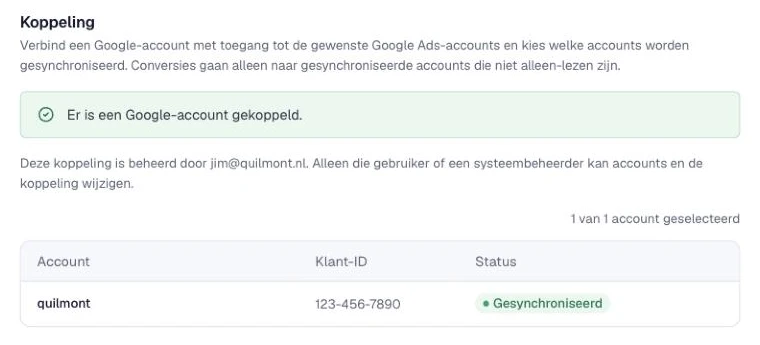
Are you an admin, but didn’t create the connection yourself? Then on the Integrations > Google Ads or Integrations > Google Business Profile page you see a message like: ‘Deze koppeling is beheerd door … Alleen die gebruiker of een systeembeheerder kan wijzigingen doen.’ (This connection is managed by … Only that user or a system administrator can make changes.) You then can’t, for example, add accounts or remove the connection. For Google Ads, you also only see the accounts that have already been synced, not the full account list.
What does a colleague with management rights get?
A colleague with management rights on the connection counts as the user who created the connection. That colleague:
- manages the connection, for example the account selection or removing it;
- sees the full account list of the connected Google account.
This only applies to the Google Ads and Google Business Profile connections. You arrange it separately for each connection.
How to request it
Qooqie sets up management rights on a connection for you. Contact your regular contact person at Qooqie and let them know:
- which organisation it’s for;
- which connection it concerns: Google Ads, Google Business Profile or both;
- which colleagues should be able to manage the connection.
No connection yet? We can still add colleagues already. They manage the connection as soon as it exists.
Note: only users with admin rights in this organisation are eligible. Doesn’t your colleague have those rights yet? Then first change this under Settings > User management (see ‘How to manage users’). If you remove a colleague from the organisation, their management rights on the connection lapse as well.
How to manage users