With a queue, callers do not get a busy tone when everyone is busy. They wait in a queue and hear their position. You turn on the queue per destination number. You can use your own introduction and your own hold music.
Turning on the queue
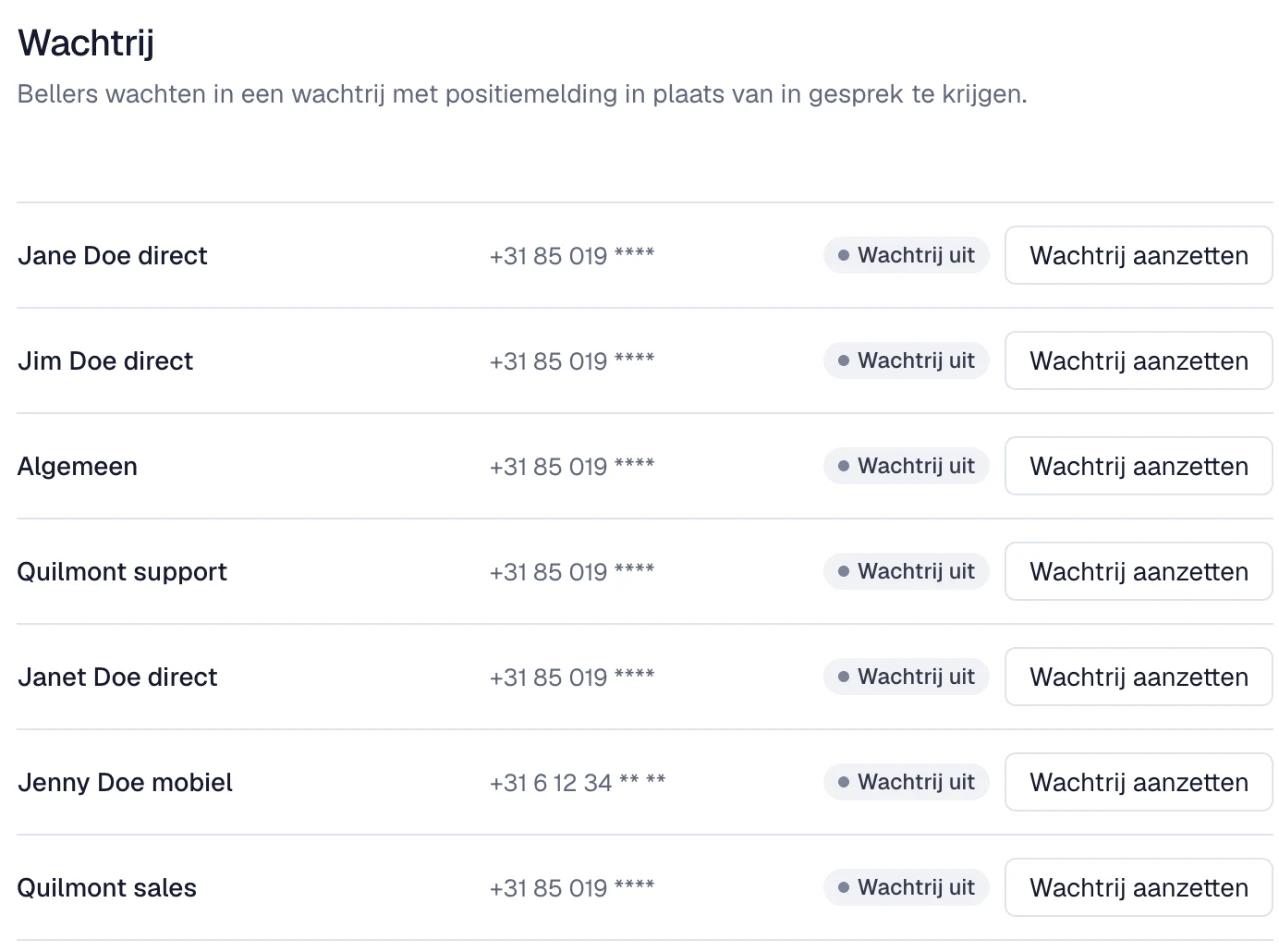
- In the Qooqie call tracking application, go to Settings > Destination Numbers > Queue.
- Find the destination number and click ‘Wachtrij aanzetten’ (turn on queue).
- Confirm with ‘Wachtrij aanzetten’. The number now shows ‘Wachtrij aan’ (queue on).
Introduction and hold music
Is the queue turned on? Then you see two audio clips below the number:
- ‘Introductie’ (introduction): what the caller hears when they enter the queue.
- ‘Wachtmuziek’ (hold music): what the caller hears while waiting.
As long as you do not upload your own clip, the default clip is used. This is how you upload your own clip:
- Under ‘WAV-bestand’ (WAV file), choose your file.
- Click ‘Uploaden’ (upload).
The file must be a WAV file of 8 kHz, mono, 8 or 16 bit. The hold music is cut off after 45 seconds. With ‘Verwijderen’ (delete) you go back to the default clip. You can also have a clip spoken. Read more in ‘How to create an audio clip with Text to Speech’.
How to create an audio clip with Text to SpeechOverview of forwarding and queues
Below the queues is the overview ‘Doorschakeling en wachtrijen’ (forwarding and queues). For each destination number, you see whether the queue is on. You also see the maximum number of callers who can wait, the maximum waiting time and how many seconds the phone rings per attempt. For a new queue, that is a maximum of 10 callers waiting, a maximum of 60 minutes of waiting and 20 seconds per attempt.
Turning off the queue
Click ‘Wachtrij uitzetten’ (turn off queue) next to the number and confirm. The hold music and introduction are then deleted as well.
Note:
- Only administrators can turn the queue on and off.
- Do you already have an active queue? Each extra queue takes an extra line into use.
- Want to change or delete a destination number? Turn off the queue for that number first.
- Phone menus are not in this list. Each key option uses the queue of the destination number it goes to.