With Zapier, you connect call tracking to thousands of other apps, without coding. You create a Zap that does something as soon as a new call comes in. For example, adding a row in Google Sheets or creating a task in your CRM.
How it works
The Qooqie app in Zapier has one trigger: ‘Leads’. It starts your Zap on every new call of the chosen account. Zapier regularly checks for new calls. The Qooqie app has no actions; you use it as the starting point of a Zap.
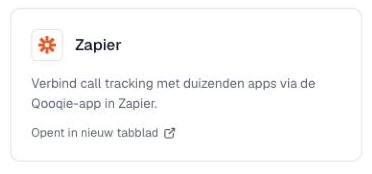
Note: you only see the ‘Zapier’ card in the Qooqie app with administrator rights. You can also open the app directly at zapier.com/apps/qooqie-call-tracking/integrations.
Open Qooqie in ZapierSetting up the connection
- In the Qooqie call tracking application, go to Integrations > Overview.
- Click the ‘Zapier’ card. The Qooqie app in Zapier opens in a new tab.
- Sign in to Zapier and create a new Zap.
- Choose the Qooqie app as the trigger and choose the event ‘Leads’.
- Connect your Qooqie account. Sign in with your Qooqie credentials.
- Under ‘Customer code’, choose the account whose calls you want to receive.
- Only want certain calls? Use the filters: ‘With recording’ – only calls with a recording. ‘With summary’ – only calls with a summary. ‘With classification’ – only calls with a rating.
- Test the trigger and then choose the action in the app the data should go to.
What data do you get?
For each call, you get among other things: campaign, ad group, ad, keywords, referrer, medium, rating and rating value, call duration, whether the call was missed, the device, whether it is a returning caller, the caller’s phone number, the page the call was made from, destination, domain, start time, GA4 client ID, Google Click ID, a download link to the recording and the summary. The field names in Zapier are in English.