With the BigQuery integration, you automatically export your calls to your own Google BigQuery project. Each call becomes a row in a table. This lets you combine call tracking data with your other data, or build your own reports on it.
Note: you need administrator rights in the Qooqie call tracking application. You also need a Google account with access to a Google Cloud project with BigQuery.
Connecting your Google account
- In the Qooqie call tracking application, go to Integrations > BigQuery.
- Click ‘Verbinden met Google’ (Connect with Google).
- Sign in with your Google account and grant access to BigQuery.
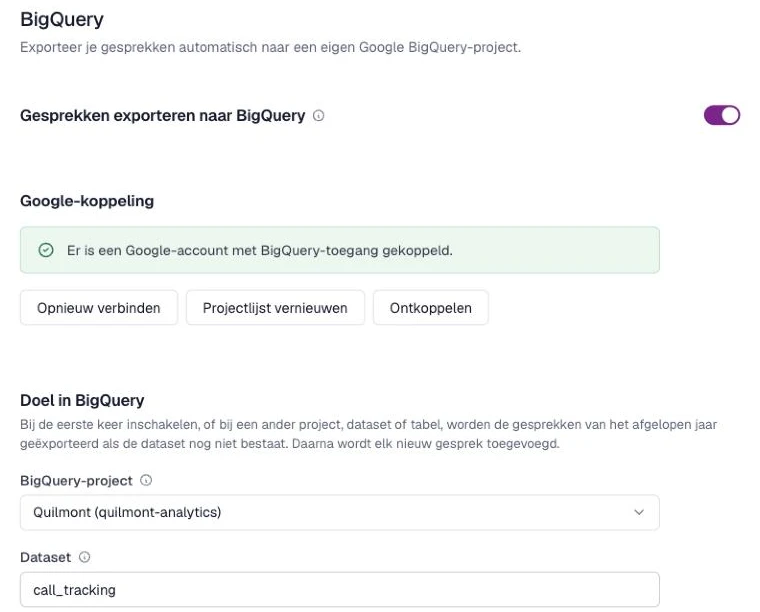
- You return to the Qooqie app. It now shows ‘Er is een Google-account met BigQuery-toegang gekoppeld.’ (A Google account with BigQuery access is connected.)
Setting up the export
- Under ‘BigQuery-project’ (BigQuery project), choose the project the calls should go to. You see the projects the connected Google account has access to. Is your project not listed? Click ‘Projectlijst vernieuwen’ (Refresh project list).
- Under ‘Dataset’, enter the name of the folder, for example call_tracking. Does the dataset not exist yet? Then it is created in the EU region Netherlands.
- Under ‘Tabel’ (Table), enter the name of the table, for example leads. Does the table not exist yet? Then it is created. Use only letters, numbers and underscores in both names.
- Choose the columns. With ‘Standaardkolommen gebruiken’ (Use default columns), the table gets a fixed set of columns, such as campaign, call duration, rating and start and end time. Want to choose yourself? Turn this off. For each column, choose under ‘Gegevens’ (Data) which data goes in it and enter the name under ‘Kolomnaam in BigQuery’ (Column name in BigQuery). Use ‘Kolom toevoegen’ (Add column) to add a column.
- Turn on ‘Gesprekken exporteren naar BigQuery’ (Export calls to BigQuery).
- Click ‘Opslaan’ (Save).
What is exported?
Each incoming call gets one row in the table. An id column is always added. Among other things, you can choose this data: medium, campaign name, Google Ads group and ad, GCLID, client ID, destination, domain, caller ID hash, caller phone number, call tracking number, start and end date/time, call duration, rating and rating value, summary, transcription, notes, keywords, page called from, landing page, referrer, device, missed call and returning caller.
How often is data exported?
Each new call is in your table within a few minutes. Does something change in a call later, such as a rating? Then the row is updated.
Are you turning on the export for the first time, or choosing a different project, dataset or table? And does the dataset not exist yet? Then the calls from the past year are exported as well.
Disconnecting
Click ‘Ontkoppelen’ (Disconnect) to remove the connection. The connection and all export settings are then removed, and access is revoked at Google. Data that is already in BigQuery stays there. Do you see a message that Google refuses the authorisation? Click ‘Opnieuw verbinden’ (Reconnect).