With the Call Match API, you link calls to your own systems. Your system sends a signed request with a caller’s phone number. Call tracking then matches that request to the right call. In the log, you see which requests came in and which matches were recorded.
Note: you need administrator rights in the Qooqie call tracking application. Building the integration is a job for a developer.
Creating a secret key
You sign every request with a secret key. Here’s how to create it:
- In the Qooqie call tracking application, go to Integrations > Call Match API.
- Click ‘Geheime sleutel aanmaken’ (Create secret key).
- Copy the key with ‘Kopiëren’ (Copy) and store it securely in the system that calls the API.
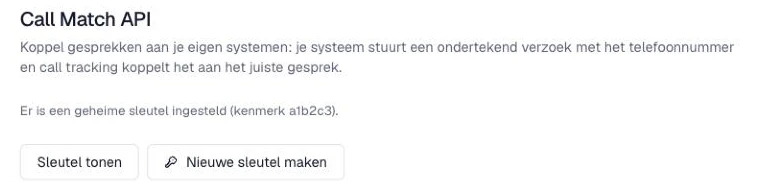
After that, you only see a short identifier of the key. Want to see the key again? Click ‘Sleutel tonen’ (Show key). Use ‘Verbergen’ (Hide) to hide it again.
The key gives access to your organisation’s data. Only share it with the system that calls the API. Showing and renewing the key are logged.
Creating a new key
Has the key leaked, or do you want to replace it? Click ‘Nieuwe sleutel maken’ (Create new key) and confirm. The current key then stops working immediately. Requests with the old key are rejected until your system uses the new key.
Sending a request
Under ‘Zo gebruik je de API’ (How to use the API), you find the steps and the address of your environment:
- Send a POST request with JSON to the address shown on the page.
- Set the x-hook-signature header to the hex HMAC-SHA256 of exactly the JSON sent, using the secret key.
- Include at least phoneNumber. Additional fields are used for matching and appear in the log.
The page also shows sample code, with the right address filled in. Copy it with the ‘Kopiëren’ (Copy) button.
Is the signature incorrect? Then the request is rejected. Call tracking looks for the call from that phone number in the past 90 days.
Viewing the log
Under ‘Call Match API-logboek’ (Call Match API log), you see the requests received:
- Use ‘Zoeken in logboek’ (Search log) to search by request ID, call ID or time.
- Under ‘Gesprekskoppeling’ (Call match), filter on ‘Alle aanvragen’ (All requests), ‘Met gesprekskoppeling’ (With call match) or ‘Zonder vastgelegde koppeling’ (Without recorded match).
- Click ‘Details bekijken’ (View details) for the contents of a request.
A missing match can mean that processing is still running. The log does not give a final error or delivery status. Don’t have access to caller numbers? Then the phone numbers in the log are masked.