A destination number is the original phone number your call tracking numbers forward to. Give each destination number a recognisable name, such as ‘Receptie’ (reception) or ‘Verkoop’ (sales). You see that name wherever you choose a destination number: in the opening hours, the queue, the phone menu and ‘Bestemming wijzigen’ (change destination) for a campaign.
Changing the name
- In the Qooqie call tracking application, go to Settings > Destination Numbers.
- Find the number in the list. Have a lot of numbers? Use the search field ‘Naam of telefoonnummer’ (name or phone number).
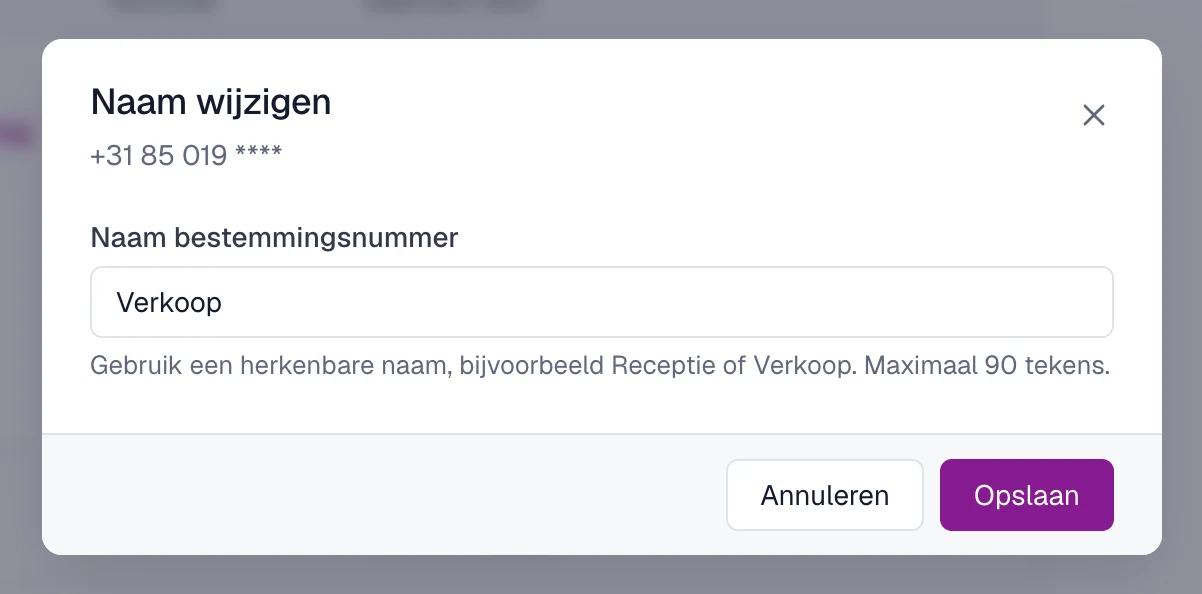
- Click the three dots on the right of the row and choose ‘Naam wijzigen’ (change name).
- Under ‘Naam bestemmingsnummer’ (destination number name), enter the new name (up to 90 characters).
- Click ‘Opslaan’ (Save).
You now see ‘De naam is opgeslagen. Het telefoonnummer en de doorschakeling blijven gelijk.’ (the name has been saved; the phone number and forwarding stay the same). So a name change has no effect on your calls.
What else you see in the list
- ‘Naam’ (name), ‘Nummer’ (number) and ‘Gebruikt door’ (used by): ‘Gebruikt door’ lists the campaigns linked directly to the number.
- Labels: ‘Standaardbestemming’ (default destination) for your first destination number, and ‘Whisper’, ‘Dynamic Whisper’ or ‘Wachtrij’ (queue) if those are turned on for the number.
- A number without a name is called ‘Naamloos bestemmingsnummer’ (unnamed destination number).
Tip: think of your phone menu
Do you have the greeting of a phone menu spoken? Then Qooqie uses the name of the destination number in the suggested text, for example ‘Voor Verkoop, toets 1.’ (for Sales, press 1). With a clear name, that text is right straight away. Read more in ‘How to set up a phone menu (IVR)’.
How to set up a phone menu (IVR)Note:
- Only administrators can change the name.
- Want to change the phone number itself? Read ‘How to change a destination number’.
- A destination number is not the same as a destination (location or department) under Settings > Destinations. How to name a destination is explained in ‘How to measure multiple destinations’.