Lead classifications are the ratings you give to calls, such as Verkoop (sale), Lead or Overig (other). You use them when rating manually, in tag rules and when rating automatically with AI. How to set up the rating itself is explained in ‘How to set up call rating’. This article explains how to add, change and delete classifications.
Note: only admins can manage lead classifications.
How to set up call ratingAdding or changing a classification
- In the Qooqie call tracking application, go to Modules > Call Review > ‘Beoordelingsmenu’ (Review menu).
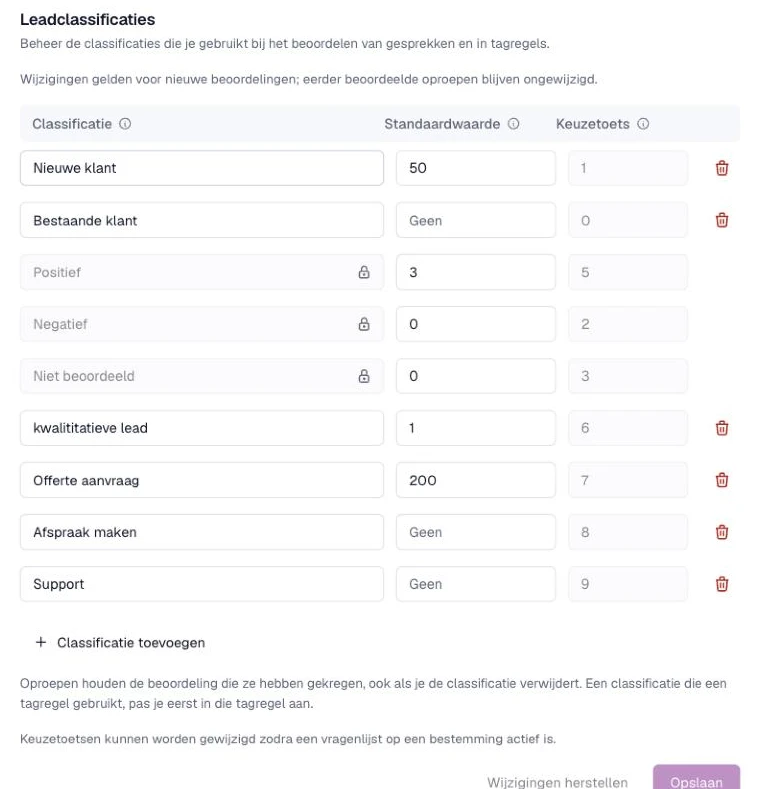
- Under ‘Leadclassificaties’ (Lead classifications), each row shows the ‘Classificatie’ (Classification), the ‘Standaardwaarde’ (Default value) and the ‘Keuzetoets’ (Key).
- Click ‘Classificatie toevoegen’ (Add classification) for a new row, or edit an existing row.
- Fill in the fields. ‘Classificatie’: a recognisable, unique name of up to 45 characters. Capital letters and spaces don’t count when comparing, so you can’t have both ‘Afspraak’ and ‘afspraak’. ‘Standaardwaarde’: a whole number, for example an average order value. Empty means no value; 0 is a value. ‘Keuzetoets’: a unique key from 0 to 9 inclusive. You can only fill in this field once a questionnaire is active on a destination.
- Click ‘Opslaan’ (Save). With ‘Wijzigingen herstellen’ (Undo changes) you reset everything to the last saved version.
Changes apply to new ratings. Calls that were rated earlier stay unchanged.
See a padlock next to a name? Then it is a system classification. You can’t change its name and you can’t delete that classification.
Deleting a classification
- Click the bin icon after the classification.
- Qooqie checks where the classification is used. You then see how many calls have this rating. Those calls keep their rating. The link ‘Bekijk de … oproepen van het afgelopen jaar’ (View the … calls from the past year) opens the call overview in a new tab, filtered on this classification. You also see whether Google Ads conversion actions use this classification. Those are no longer sent for new calls. And you see whether tag rules use this classification. If so, you can’t delete it yet. Click ‘Naar tagregels’ (To tag rules) and change those rules first. Read ‘How to set up Call Tags’.
- Click ‘Verwijderen’ (Delete).
- Then click ‘Opslaan’ (Save) to complete the deletion.
Do you use the classification under ‘Automatisch beoordelen met AI’ (Rate automatically with AI)? Then choose a different classification there. Read ‘How AI rates your calls automatically’.
How AI rates your calls automaticallyConversions per classification
Below the lead classifications, under ‘Conversies per leadclassificatie’ (Conversions per lead classification), you set which classifications go to Google Ads or GA4 as a conversion. Read ‘How to choose per lead classification which conversion goes to Google Ads or GA4’.
How to choose per lead classification which conversion goes to Google Ads or GA4