
Welcome to our support center
Here you will find (almost) all information about the settings that help our tool perform as well as possible when generating conversions on your website. Feel free to contact us personally if your question is not listed.
All support articles
How to use the getting started checklist
With ‘Aan de slag’ (Getting started) you set up call tracking step by step. Each step opens the screen where you make the setting directly, so you don’t have to search the menu.
How to create a custom form
How to create a custom form in Qooqie Leads, set up its fields and show the form in the widget.
How to set up custom dimensions in Google Analytics 4
Within Google Analytics, you can expand your call information with additional data. This can take the form of custom dimensions and custom metrics.
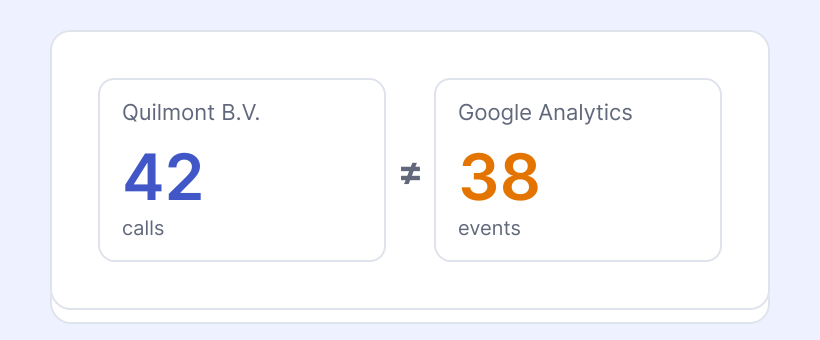
Why do call counts differ from Google Analytics?
The Qooqie call tracking application always shows all calls received on call tracking numbers. Are they not all showing up in Google Analytics? There are four possible reasons:
How to choose or change your subscription
On the Subscription page you choose a package yourself, for example at the end of your trial.
How to manage your account and privacy
Under Settings > Account Information and Privacy, you decide which users can see call recordings and callers’ phone numbers. You change your own name, phone number, email address and password via the…
How to work with account teams
Do you offer call tracking under your own name (white label)? Then you divide your clients over account teams.
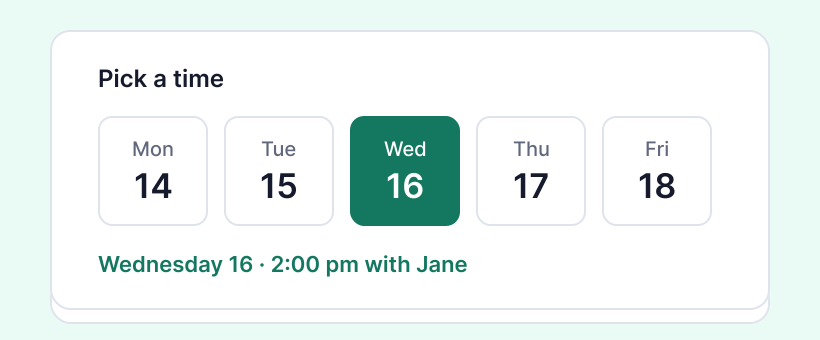
How to set up the calendar
How to set up the Calendar Call To Action in Qooqie Leads, so visitors book an appointment in a colleague’s calendar themselves.
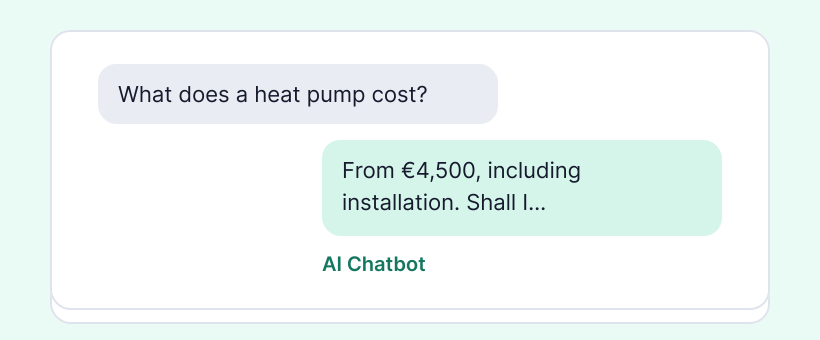
How to set up the AI Chatbot
How to set up the AI Chatbot in Qooqie Leads: add sources, set up its appearance and instructions, test it and switch it on.
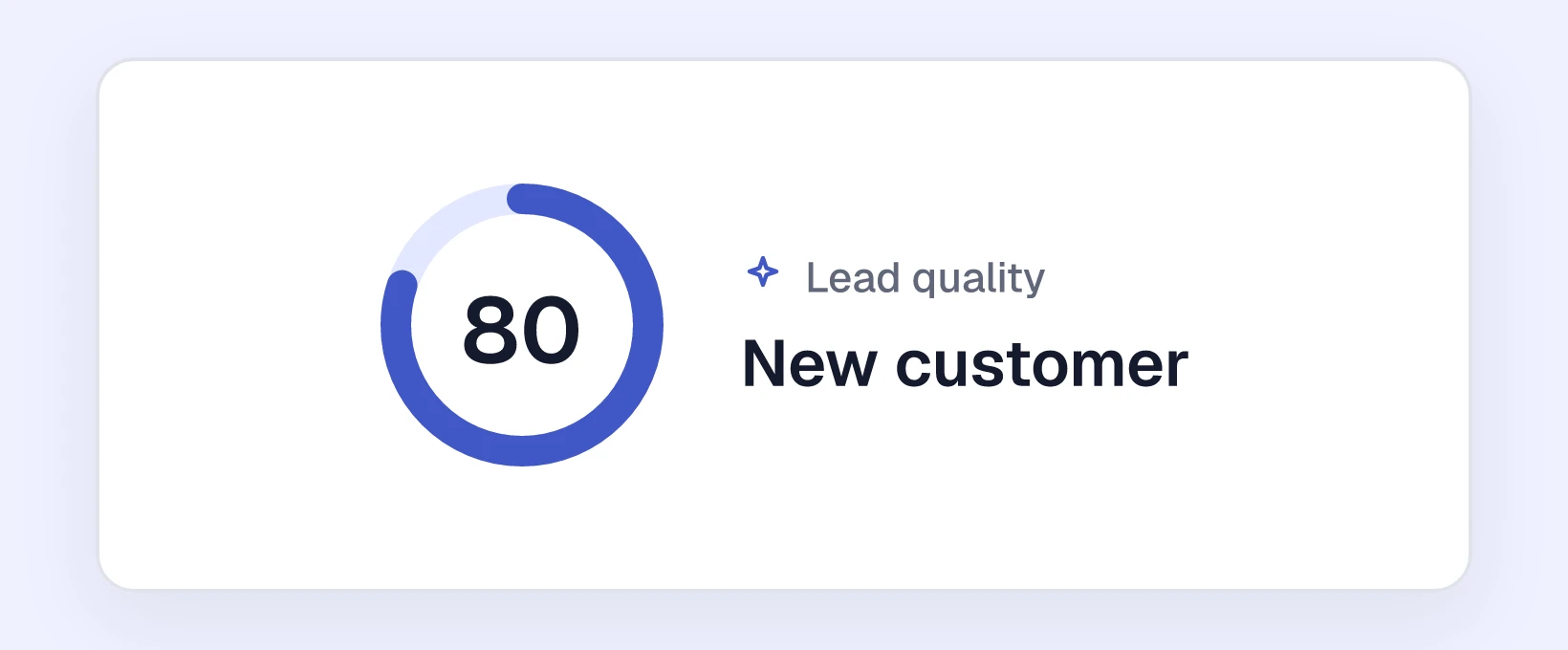
How AI rates your calls automatically
When Call Summary is on, AI rates every recorded call: what did the caller want, is it a sales lead and how likely is it to turn into a job?
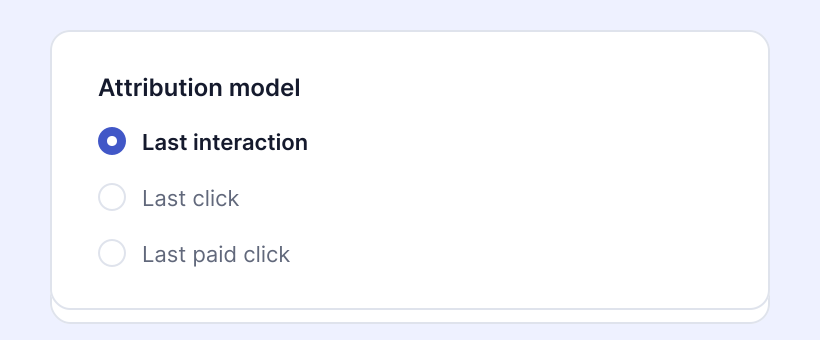
How to choose an attribution model
In the Qooqie call tracking application, you can choose from different attribution models. The attribution model determines which action of the caller the call is assigned to. In other words: which…
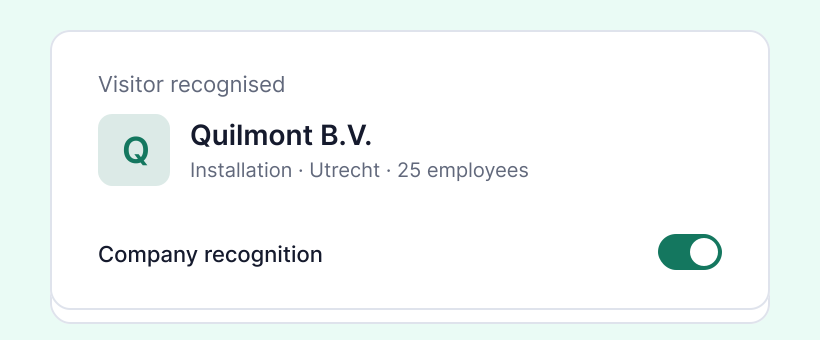
How company recognition works
How to turn company recognition on or off in Qooqie Leads and see which companies visit your website.
Who can manage a Google Ads or Google Business Profile connection?
You set up the Google Ads and Google Business Profile connections with your own Google account. So only the user who created a connection can manage it.
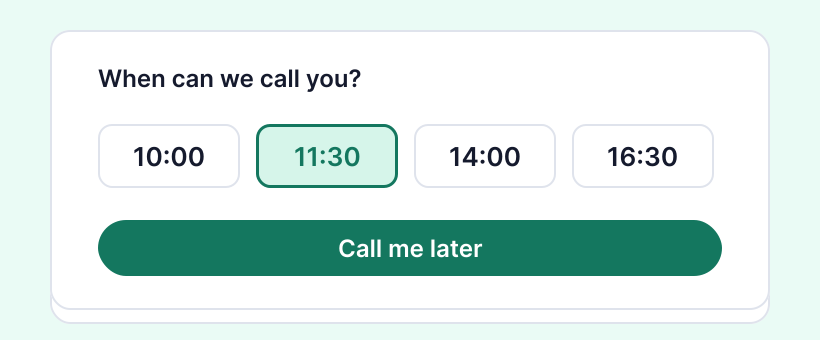
How to set up Call me later
How to set up the Call me later Call To Action in Qooqie Leads, so a visitor picks their own time to be called back.
How to set up Call me now
How to set up the Call me now Call To Action in Qooqie Leads, so a visitor is called back right away.
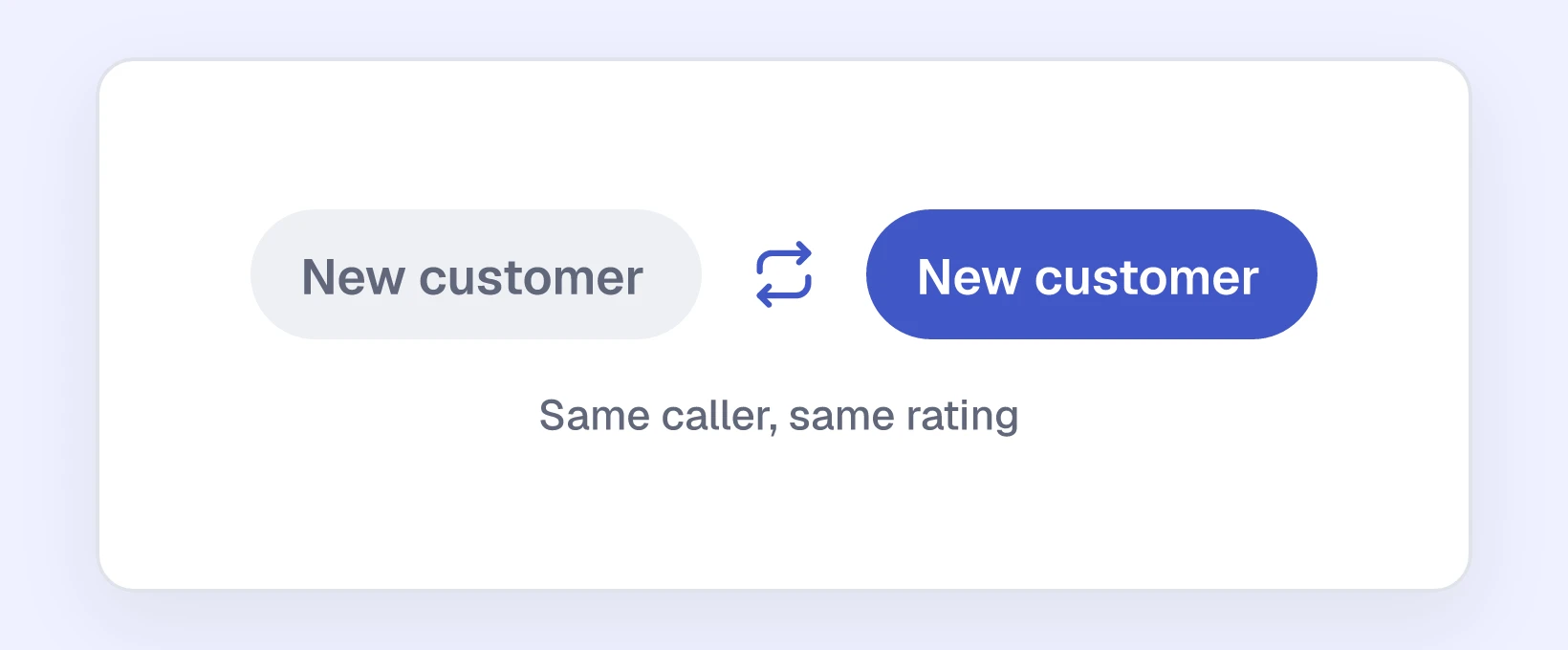
How to copy the rating of a previous call
Does someone call more often? Then you don’t want to rate every call again.
How to set up Leave a message
How to set up the Leave a message call to action in Qooqie Leads step by step, so visitors can send a message through the widget.
How to give destination numbers a recognisable name
Give each destination number a recognisable name, such as ‘Receptie’ (reception) or ‘Verkoop’ (sales). You see that name wherever you choose a destination number.
How to connect BigQuery
With the BigQuery integration, you automatically export your calls to your own Google BigQuery project. Each call becomes a row in a table.
How to connect Billy Grace
Billy Grace is a marketing attribution platform. With the Billy Grace integration, you send your calls to Billy Grace as an event.
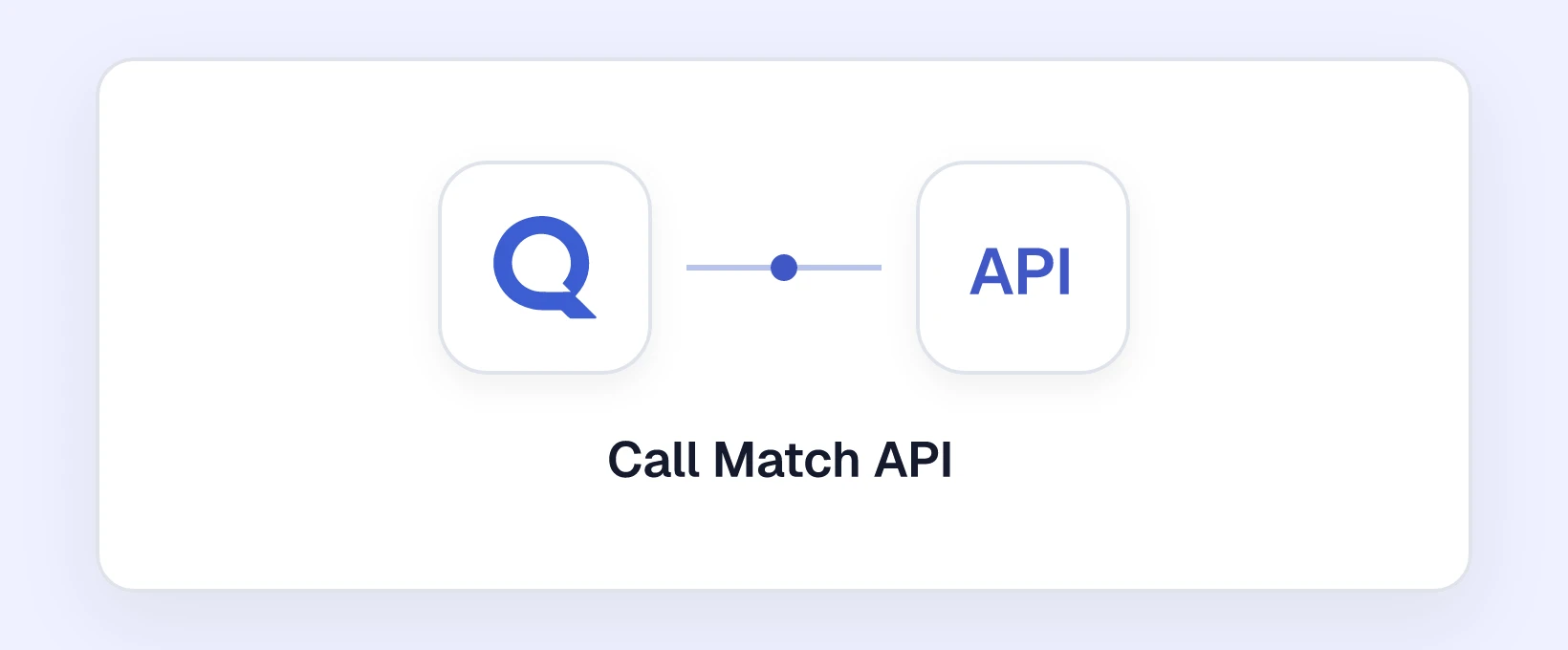
How to use the Call Match API
With the Call Match API, you link calls to your own systems. Your system sends a signed request with a caller’s phone number.
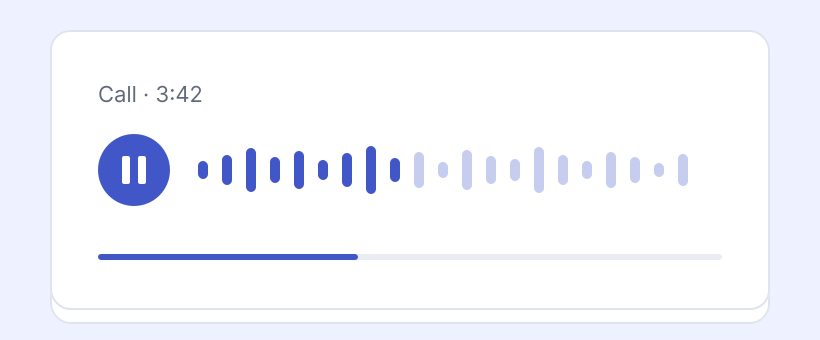
How to turn on call recording
This article explains how to turn on call recording, use your own recording message and listen back to calls.
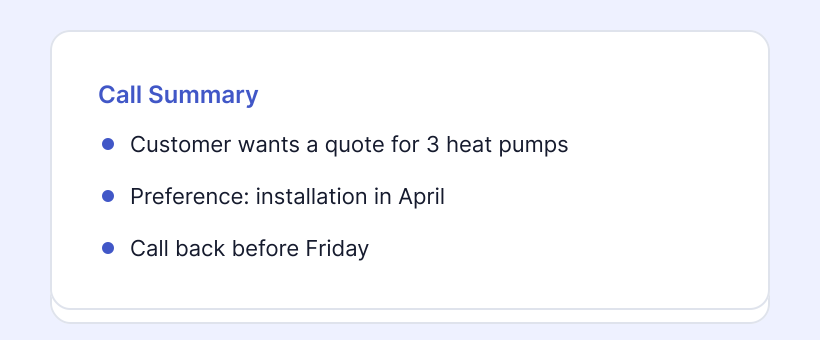
How to turn on Call Summary
The ‘Call Summary’ module summarizes conversations based on the recording of a call. With the summary, you can easily read what took place during a conversation.
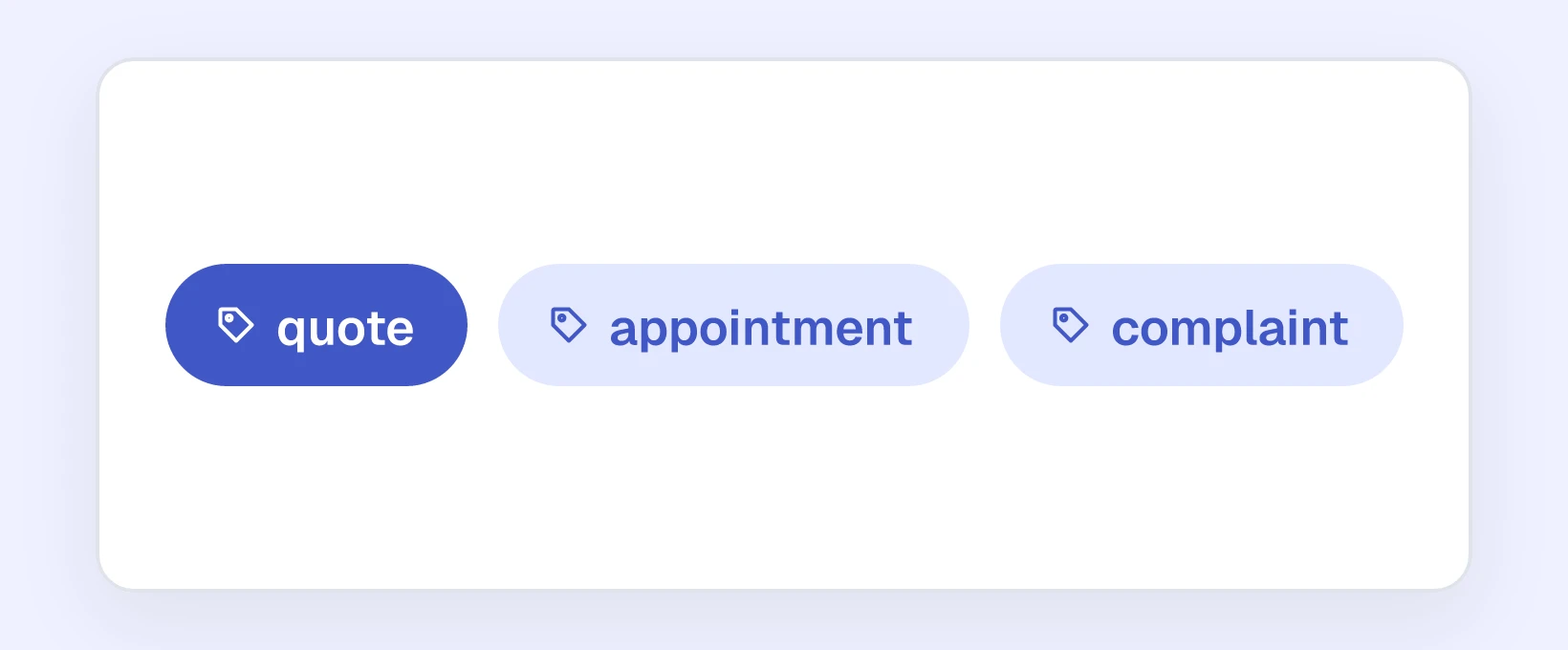
How to set up Call Tags
With Call Tags, calls are labelled automatically by topic, such as ‘quote’, ‘complaint’ or ‘appointment’.
How to use the call tracking assistant
The assistant is an AI helper in the Qooqie call tracking application.
How to connect ChatGPT Ads
Advertising in ChatGPT? With the ChatGPT Ads integration, calls are sent to your ad account as conversions automatically.
Why aren’t my conversions showing up in Google Ads?
Qooqie automatically sends calls after a click on your Google Ads ad to Google Ads as offline conversions. Not arriving? The app usually shows you why.
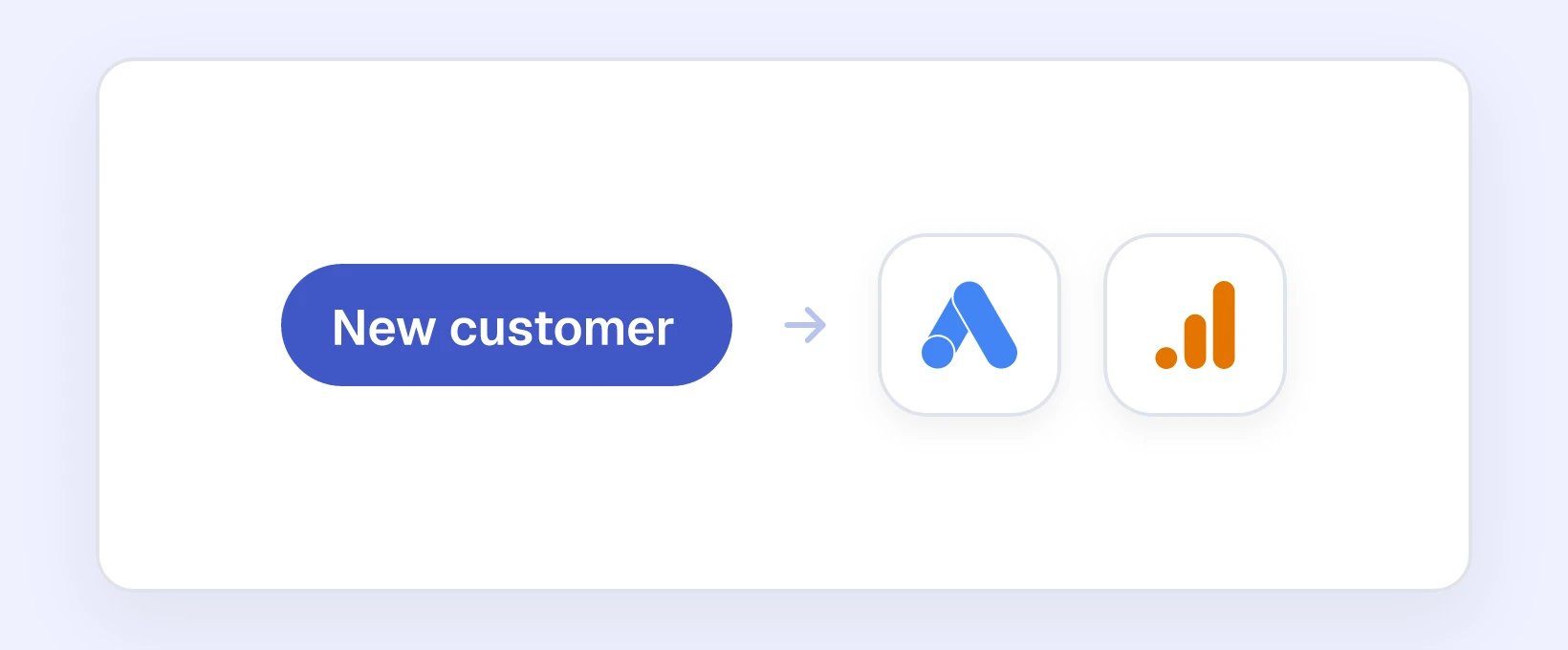
How to choose per lead classification which conversion goes to Google Ads or GA4
Not every rated call is a conversion. For example, you don’t want to count a service question in Google Ads, but you do want to count an appointment.
How to filter your data by campaign, traffic source, destination or rating
How to filter your calls on Home and in the call overview by campaign, traffic source, destination or rating, and how to reset the filters.

How to set up dynamic call tracking
This article explains how to place the call tracking script on your website, mark your phone numbers and check whether your domain is verified.

How to set up email reports
How to choose in the Qooqie call tracking application who receives a daily, weekly or monthly report by email, and what that report contains.

How to change a destination number
A destination number is an original number of your organization. Call tracking numbers can be forwarded to it. Want to change a destination number? You do that in the Qooqie call tracking application:

How to measure calls as a key event in Google Analytics 4
In Google Analytics, you can set up goals. A goal represents a specific completed activity. This could be a purchase, filling out a form, or calling a call tracking number. The Qooqie call tracking…
How to add a second event in Google Analytics 4
How to send a second event per call to Google Analytics 4, yourself with the additional event or automatically after a rating with the conversion event.
How to view your invoices and costs
In the Qooqie call tracking application you download your invoices and see what your next invoice costs. You also see how many sessions and call minutes you have used this month.
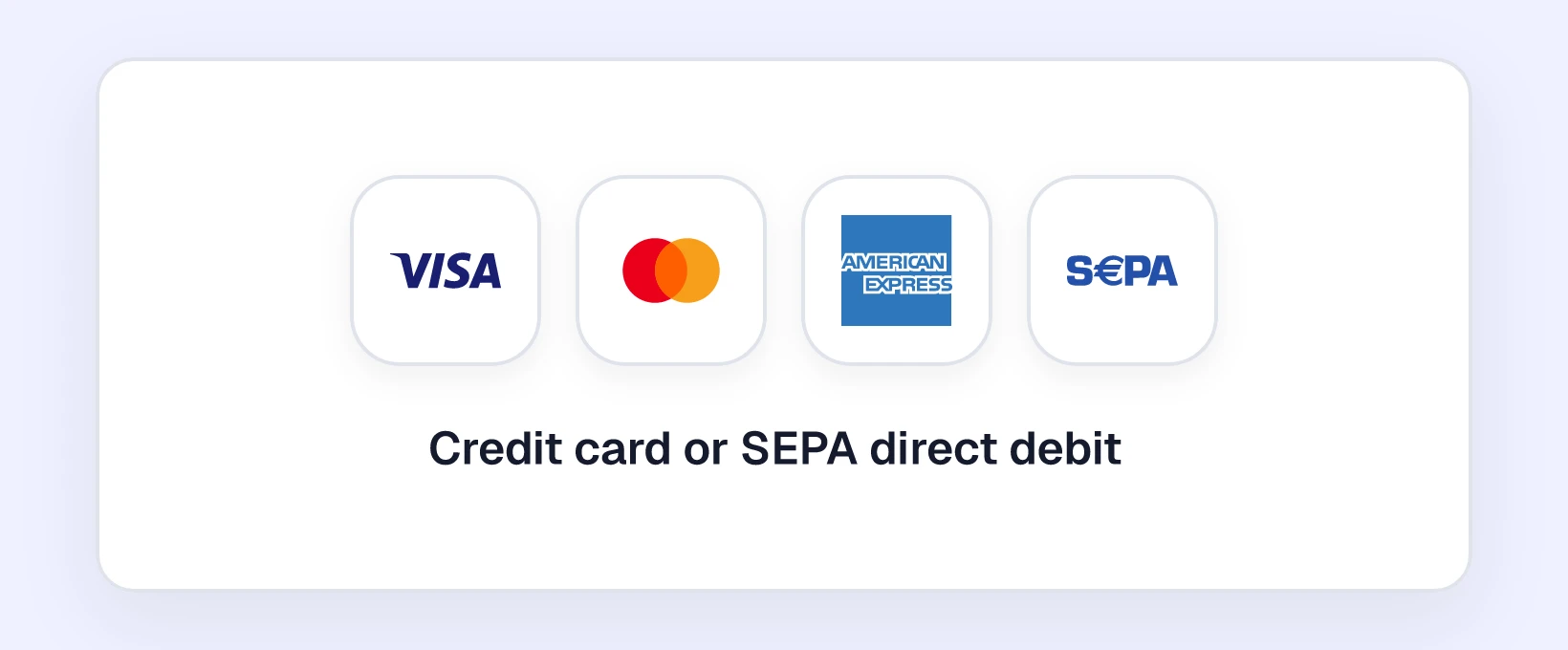
How to manage your billing details and payment method
Under Billing you manage the details that appear on your invoices and the payment method used to pay your subscription.
Call Tracking FAQ
Answers to frequently asked questions about Call Tracking, pricing, Google Analytics, Google Ads and your account.
Qooqie Leads FAQ
Answers to frequently asked questions about Qooqie Leads, the AI Chatbot, pricing and your account.
How to manage users
Under Settings > User Management in the Qooqie call tracking application, you can do the following things:
How to work with the call overview
The call overview shows every call to your call tracking numbers, with the traffic source, campaign, rating, recording and details.

How to add a Google Ads call extension
A Google Ads call extension is a phone number displayed with a Google ad. Visitors can tap or click on it to call your business directly. If you replace your phone number in this call extension with…

How to measure calls from Google Business Profile
Google My Business makes your business more easily found online. But does this channel also contribute to your phone contacts and conversions? With offsite call tracking, you can easily find out. You…

How does the Home dashboard work?
This article explains what the figures, charts and tables on Home in the Qooqie call tracking application mean.
How to connect HubSpot
With the HubSpot integration, every call lands in your CRM automatically. Qooqie looks up the contact by phone number and logs the call as a call activity on that contact.
How to get started as an agency
This article shows the order in which an agency sets up call tracking for a client, with a link to the details for each step.
How to send installation instructions to your web developer
Is someone else placing the call tracking script on your website? Then you send that person the script and the instructions directly from the Qooqie call tracking application.
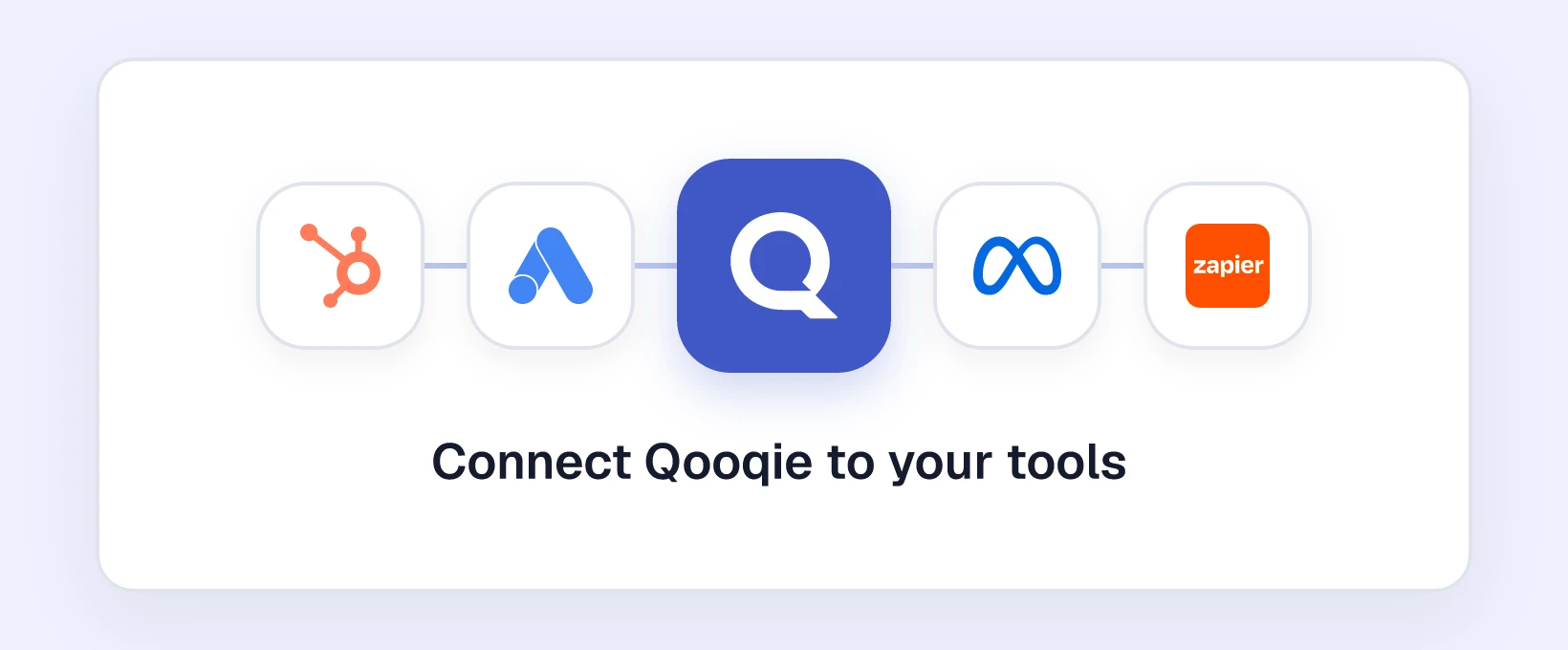
How to connect call tracking to other systems
An overview of all integrations in the Qooqie call tracking application, where to find them and which guide goes with each integration.

How to request international phone numbers
Explains foreign tracking numbers: which numbers you create yourself, how to request a foreign number through Qooqie and what you need for it.
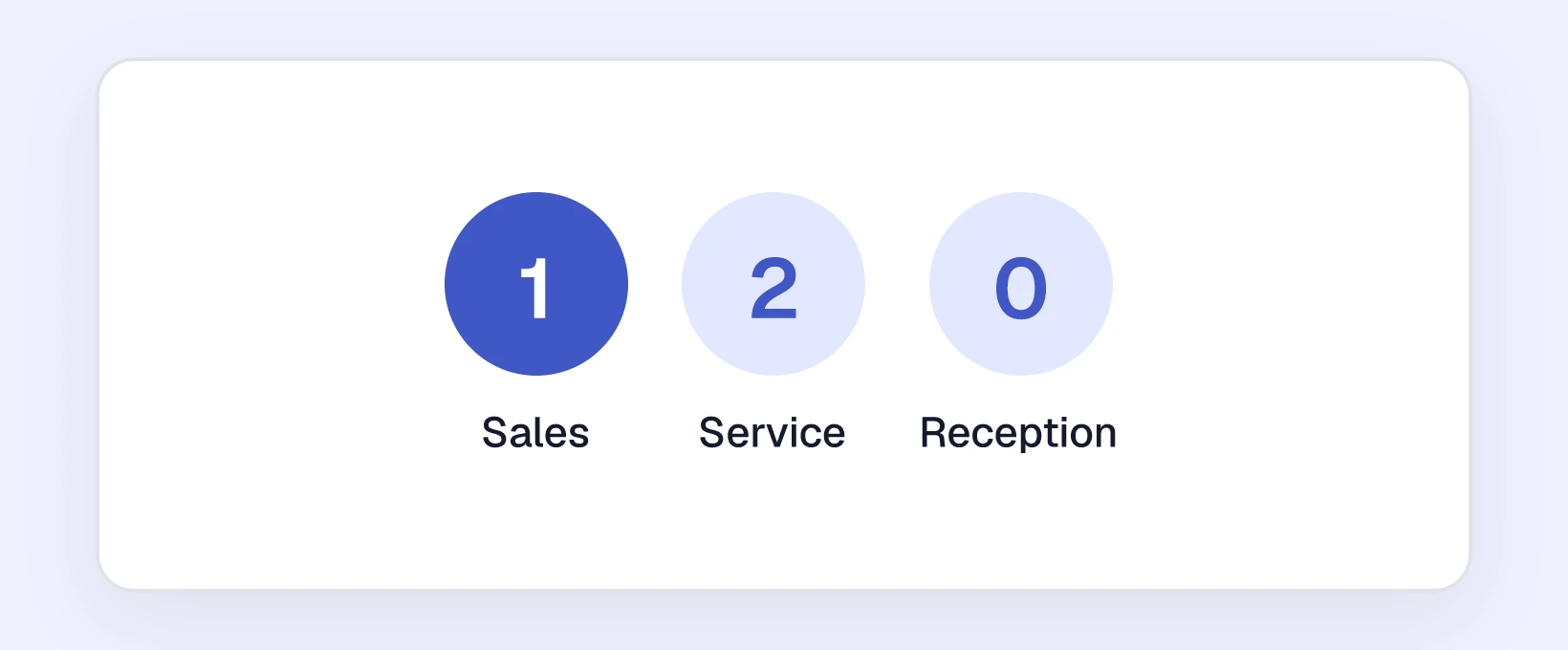
How to set up a phone menu (IVR)
With a phone menu, callers press a key to choose where they want to go, for example 1 for sales and 2 for service.
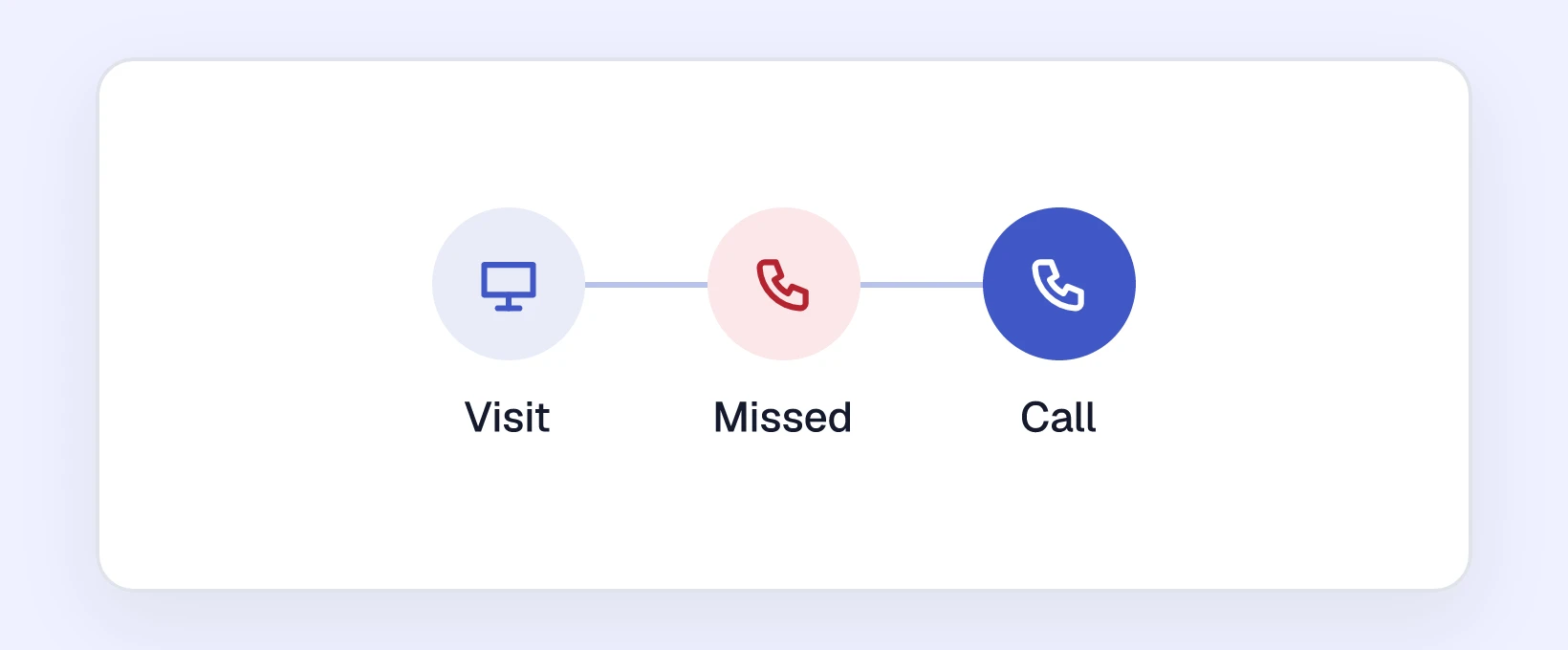
How to view a caller’s customer journey
The customer journey shows in one timeline what a caller has done with you: all calls from this phone number and the website sessions linked to those calls.
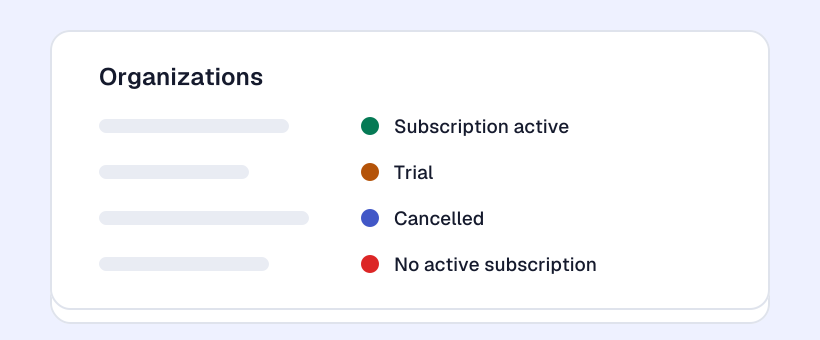
What do the colours of your subscription status mean?
In Qooqie Call Tracking every organization has a coloured dot. It shows the status of its subscription at a glance.
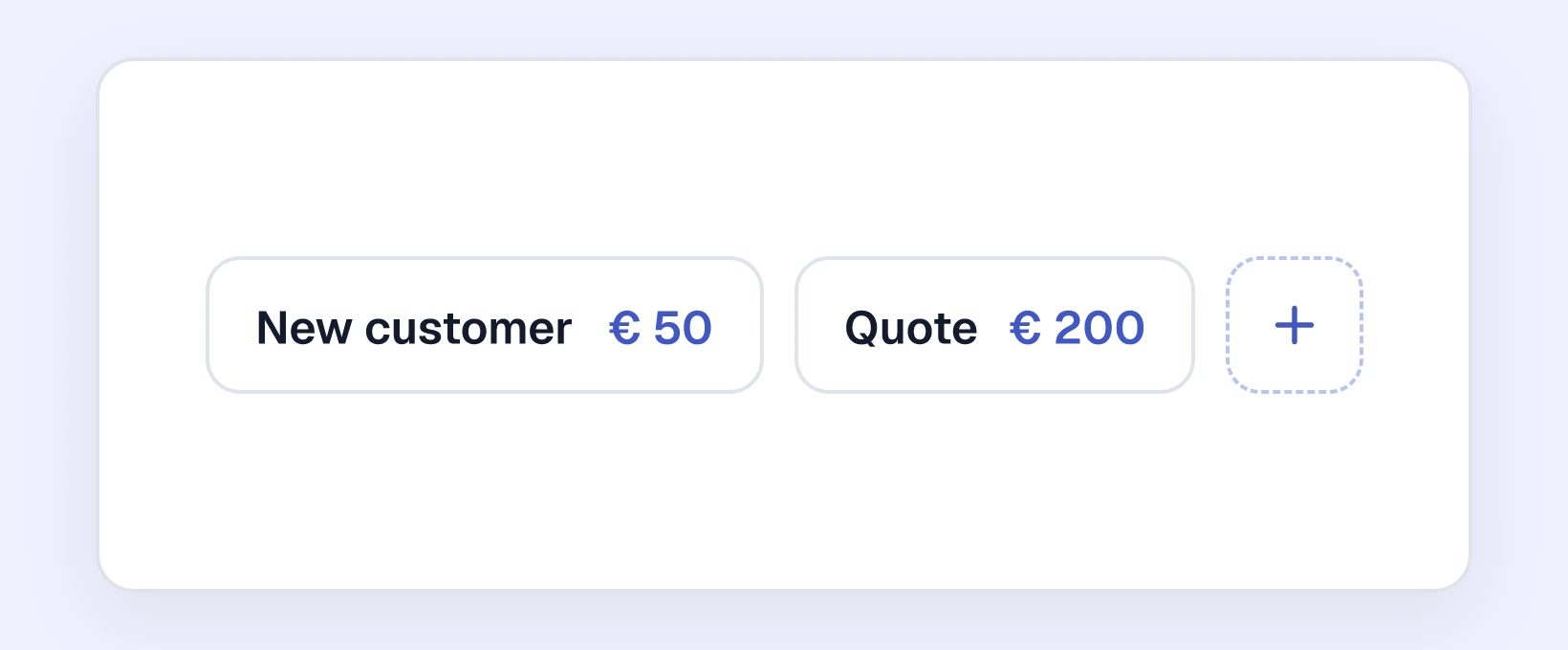
How to manage lead classifications
Lead classifications are the ratings you give to calls, such as Verkoop (sale), Lead or Overig (other).
How to connect LEF
LEF is a lead management system for car dealerships. With the LEF integration, every call arrives in LEF as a phone lead.

How do live calls work?
Explains Live calls in Qooqie Call Tracking: what you see, how to rate a call live, how to turn on notifications and who can see the page.
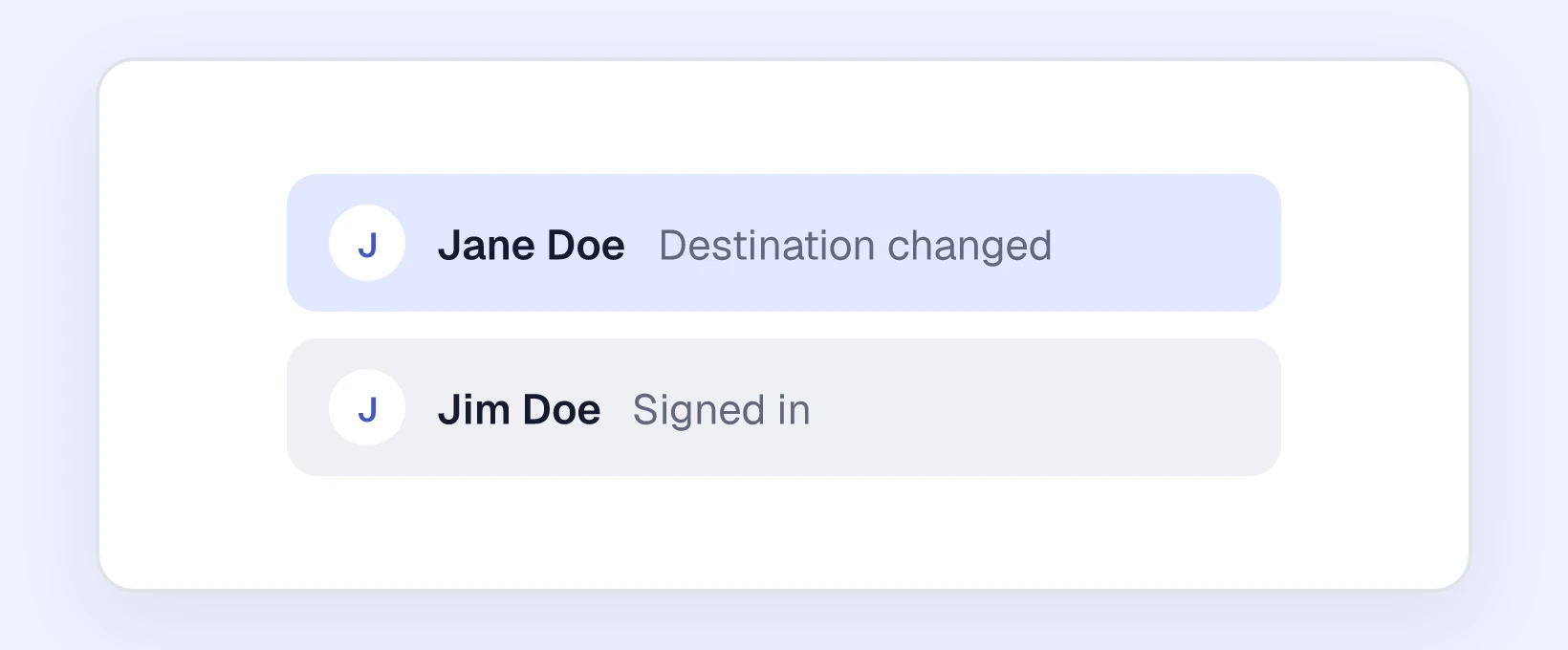
How to read the activity log
The activity log shows who did what in your account: who logged in, what was changed and which calls were rated or deleted.
How to connect Looker Studio
With Google’s Looker Studio, you build your own reports and dashboards. With the Qooqie connector, you use your call tracking data as a data source.

How to measure multiple destinations
When you implemented call tracking from Qooqie, an initial destination was automatically created. This is linked to the destination number you entered during the signup process. Do you have different…
How to connect Meta Ads
With the Meta Ads integration, calls are sent to Meta as conversions automatically. You see in Meta which Facebook and Instagram ads bring in phone calls.
How to connect Microsoft Ads
With the Microsoft Ads integration, calls count as offline conversions in Microsoft Ads. Qooqie creates an import URL for this.
How to install offsite call tracking
You can also track calls to phone numbers that you communicate outside your website. For this, you use offsite call tracking. Wherever your phone number appears outside your website (campaign), you…
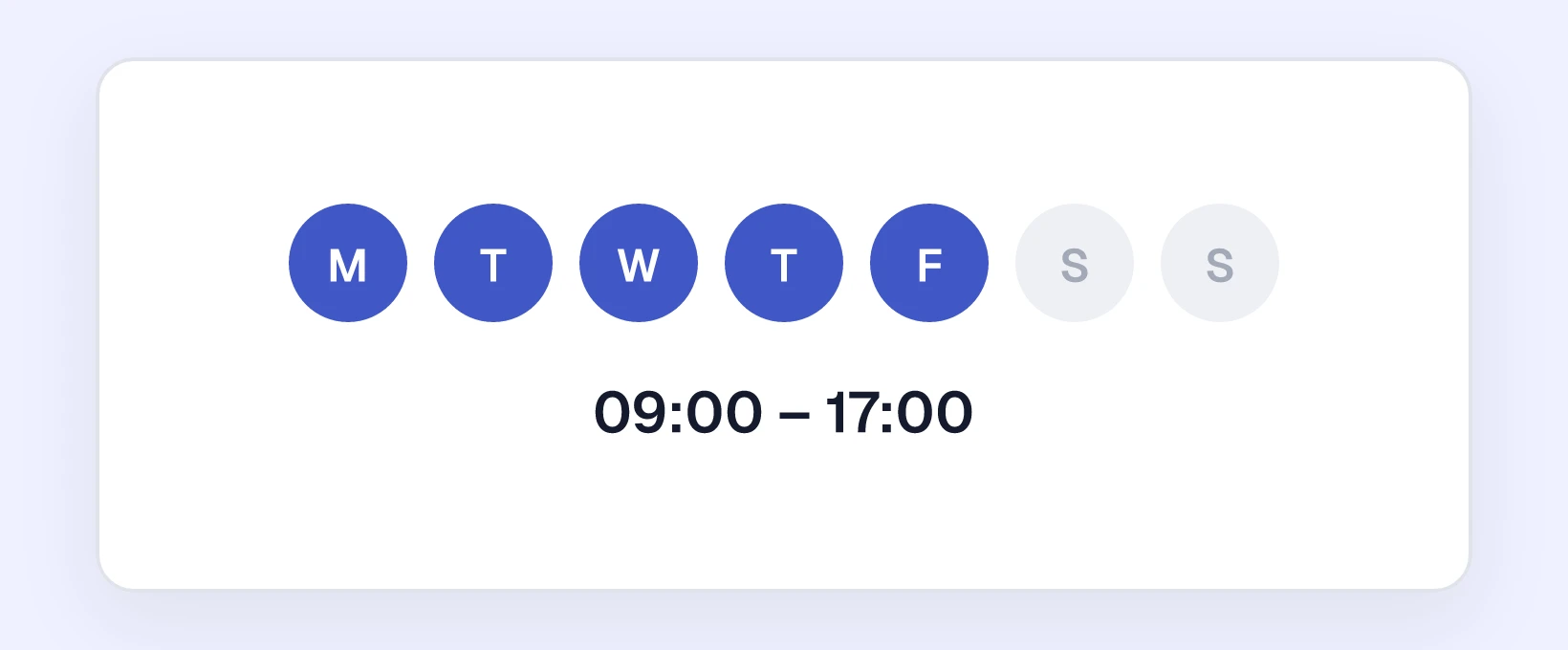
How to set opening hours and mark calls outside opening hours
Set for each destination number when you can be reached. Calls outside those hours get the label ‘buiten openingstijden’ (outside opening hours).
How to skip the recording message for a destination
Do you already announce the recording yourself, for example in your own phone system? Then Qooqie can turn off the recording message for a destination.

How to set up call rating
The ‘Call Review’ module allows you to gather even more valuable insights from your call tracking data. For example, consider the number of existing and new customers calling, the number of calls…

How to export calls
How to download your calls as a CSV file with the same period, filters and search as in the app, and what the file contains.

What are calls with and without sessions?
Explains the difference between calls with and without a session and how to find and filter them in Qooqie Call Tracking.
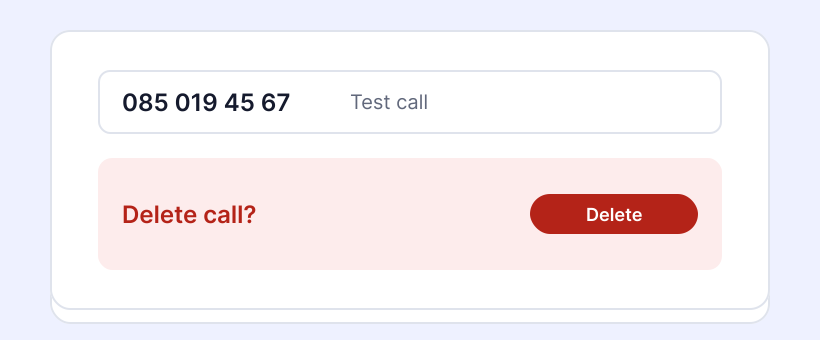
How to delete calls
How administrators delete one or more calls from the Qooqie call tracking application, and what happens to those calls afterwards.
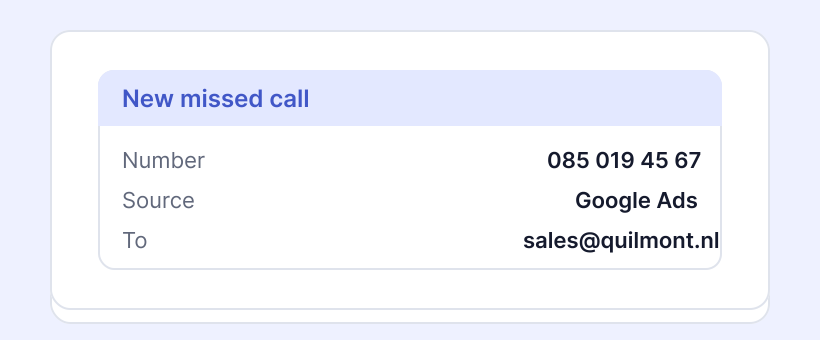
How to set up call notifications
Within the ‘Call Notifications’ module, you can set up who receives an email notification about which type of calls. For example, you can receive a notification for every missed call so you can call…
How to sign up a client and request a quote as a partner
As a partner you sign up new clients yourself in the Qooqie call tracking application. For an existing client you can also request a quote.
How to work with your clients as a partner
As a partner you manage call tracking for your clients from one login. Each client has its own environment with its own subscription, under your partner account.
How to connect Piwik PRO
With the Piwik PRO integration, you send phone conversions to Piwik PRO.
How to start a call tracking trial
You can try call tracking free for 14 days. We don’t send an invoice during the trial.

How do session settings work?
Explains the session settings in Qooqie Call Tracking: excluding your own visits with the session filter, setting a maximum with the session stopper and marking spam numbers.
How to view session recordings
With session recordings you watch a visit to your website back as a video. You see which pages a visitor viewed, how they scrolled and where they clicked before they called.
How to get a Slack or Teams message for every call
With the ‘Slack & Teams’ integration, you get a message in a Slack or Microsoft Teams channel for every call. Your team can respond quickly.

How to filter by call length
In many organizations, there are common patterns to be found regarding call duration when looking at successful and less successful calls. For example, consider:
How to mark spam numbers
Do you often get calls from the same unwanted number, for example a cold caller or a robot? Then add that number to the list of spam numbers.
Which language are the transcript and summary in?
With Call Summary, every recorded call gets a transcript and a summary.
How to measure clicks on phone links
Is your phone number in several places on your website? Phone click tracking measures which phone link a visitor clicks before they call.
What are recurring callers?
Some customers or leads call more than once. But if they convert over the phone, it often happens during just one of these calls. Therefore, it’s good to be able to differentiate between unique and…
How to create an audio clip with Text to Speech
With Text to Speech, you turn a text into a spoken audio clip. You listen to it first, and then download it or use it straight away as a whisper.
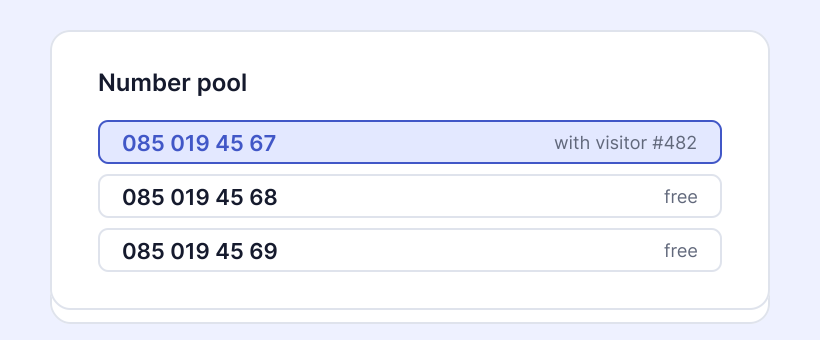
What are issued numbers?
Explains your organization’s issued numbers: where to find them, what the columns and statuses mean and when to contact Qooqie.
How to measure UTM tags
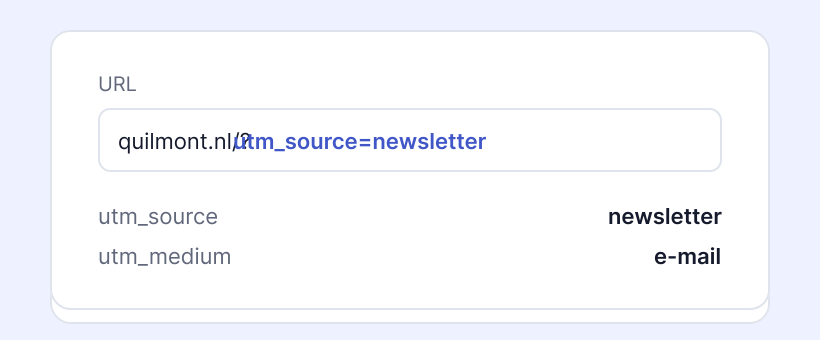
You add UTM tags to a URL to measure which source, medium, and campaign a visitor came from to a page. In the Qooqie call tracking application, you can then see which phone calls and conversions…
How two-step verification works
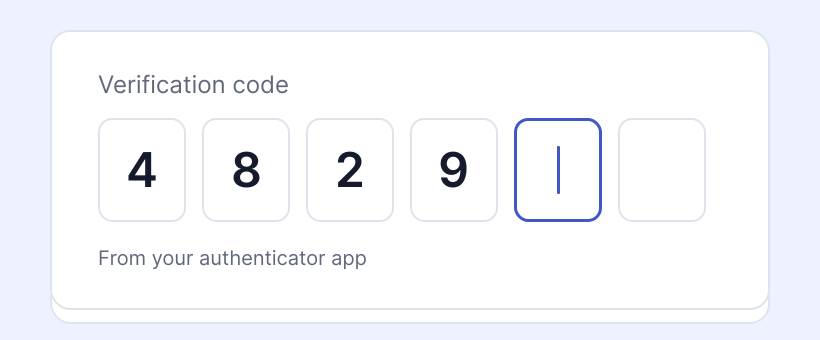
The security of your data is very important to Qooqie. You don’t set up two-step verification separately in the app: it is part of signing in. Does your organization require two-step verification?…
How to set up traffic sources
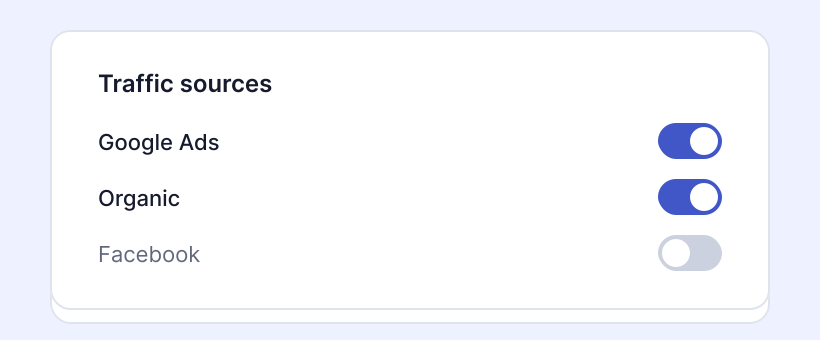
Traffic sources are the call tracking campaigns you can add and measure in the Qooqie call tracking application. This can include both dynamic and offsite campaigns. The Qooqie app distinguishes…
Where can I find my invoice?
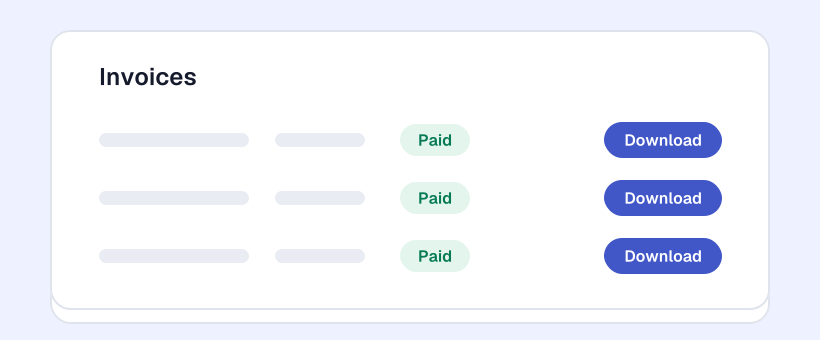
You can view and download your Qooqie Call Tracking and Qooqie Leads invoices yourself in the app. Here’s where to find them.
How the queue works
With a queue, callers do not get a busy tone when everyone is busy. They wait in a queue and hear their position.
How to set up webhooks
With webhooks, you automatically send call data to your own systems, such as a CRM or data warehouse.
How to view website sessions
The ‘Sessies’ (Sessions) overview shows the visitors to your website who were shown a tracking number, with their traffic source, campaign and landing page.
How to set up WhatsApp
How to set up the WhatsApp Call To Action in Qooqie Leads, so visitors start a WhatsApp conversation with your business from the widget.
How to set up a whisper
How to turn on a whisper in Qooqie Call Tracking, use your own prompt or a partner prompt and set up the dynamic whisper.
How to connect Zapier
With Zapier, you connect call tracking to thousands of other apps, without coding.
How to use the search bar
The search bar at the top of the Qooqie call tracking application quickly finds a page, setting, traffic source, phone number or call.
How to export calls
How to download your calls as a CSV file with the same period, filters and search as in the app, and what the file contains.
What are calls with and without sessions?
Explains the difference between calls with and without a session and how to find and filter them in Qooqie Call Tracking.
How to delete calls
How administrators delete one or more calls from the Qooqie call tracking application, and what happens to those calls afterwards.
How to set up call notifications
Within the ‘Call Notifications’ module, you can set up who receives an email notification about which type of calls. For example, you can receive a notification for every missed call so you can call…
How to sign up a client and request a quote as a partner
As a partner you sign up new clients yourself in the Qooqie call tracking application. For an existing client you can also request a quote.
How to work with your clients as a partner
As a partner you manage call tracking for your clients from one login. Each client has its own environment with its own subscription, under your partner account.
How to connect Piwik PRO
With the Piwik PRO integration, you send phone conversions to Piwik PRO.
How to start a call tracking trial
You can try call tracking free for 14 days. We don’t send an invoice during the trial.
How do session settings work?
Explains the session settings in Qooqie Call Tracking: excluding your own visits with the session filter, setting a maximum with the session stopper and marking spam numbers.
Ready for more insights, more leads and better conversions?
Start optimizing your results.
Try it free for 14 days—no credit card required.